Adding Basemap
This functionality enables you to add a basemap to the platform.
You will also get to know how the form_provider field determines the source and method used to retrieve and render the basemap layer in the Base Map Data Source Types chapter and learn a few best Practices and decision tips to to add basemaps to the platform.
To add a new basemap, do the following:
-
Login to the platform.
-
Click the System Panel and then click the Basemaps sub-module.
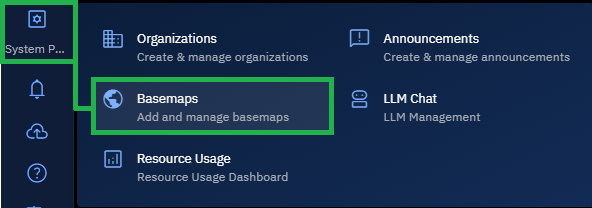
The Basemaps page is displayed.
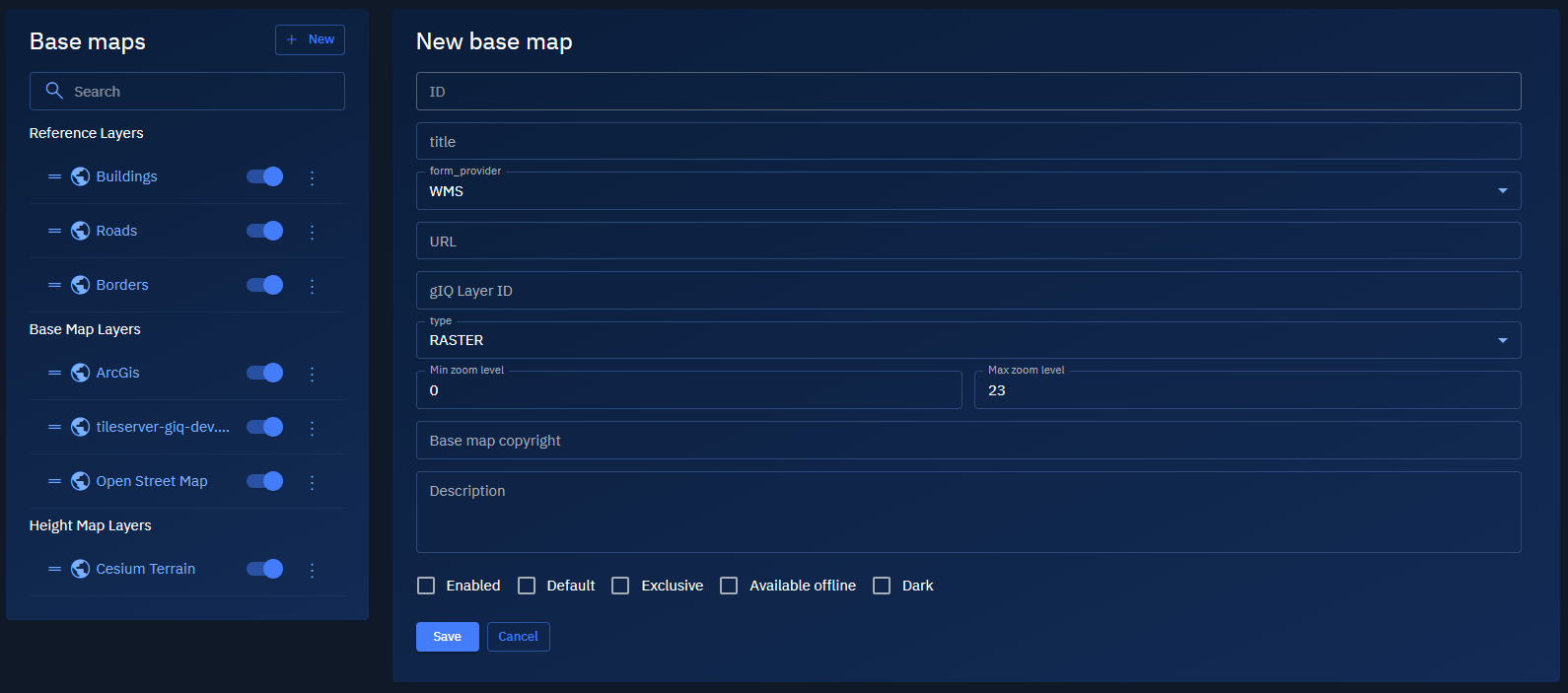
-
On the Base Map page, click the + New button to create a new base map layer.
-
Type or select the following information:
Field Description ID A unique identifier for the base map (string format). Title Display name of the base map. This will appear in the layer list. form_provider Select the data source type. See options and descriptions below. URL The service endpoint or URL template for the map source. Layer ID (Optional) Specific layer identifier used by the map provider (for example, for WMS layers). type The data format, typically set to RASTER,VECTOR,BINARY.Min zoom level Minimum zoom level (e.g., 0 = global scale). Max zoom level Maximum zoom level (e.g., 23 = street-level details). Base map copyright Legal or attribution text, if required by the provider. Description Notes about this base map. -
Select one or all of the following options to configure base map display.
- Enabled: Turns the layer on for user selection.
- Default: Makes this the default base map when users first open the application.
- Exclusive: Prevents the use of other base layers simultaneously.
- Available offline: Indicates whether this layer is cached for offline access.
- Dark: Marks the base map as suitable for dark theme visualizations.
-
Click Save to finalize.
The base map is successfully created and added to the platform.
Understanding Base Map Data Source Types
The form_provider field determines the source and method used to retrieve and render the basemap layer.
Each type supports different integration methods. It is important that you select the correct option for proper integration with external or internal tile services.
| Provider | Description and Use Case | Required Fields | Example Use Case |
|---|---|---|---|
WMS | Web Map Service — fetches georeferenced map images from a WMS-compliant server. Use to fetch georeferenced map images from WMS-compliant servers. | URL, Layer ID | Government geospatial data, environmental datasets |
URL_TEMPLATE | Tile-based access using a templated URL (e.g., https://tileserver.com/{z}/{x}/{y}.png). Use to serve tiles using a templated URL structure. | URL ({z}, {x}, {y} required) | https://my.tileserver.com/maps/{z}/{x}/{y}.png |
ARCGIS | Connects to an ArcGIS server using REST API or ArcGIS Online. Use to connect to ArcGIS REST API or ArcGIS Online services. | URL, optionally Layer ID | Municipal GIS data, hosted ArcGIS layers |
OPEN_STREET_MAP | Pulls tiles directly from OpenStreetMap or compatible tile server. Use to access OpenStreetMap or public tile server. | None | OSM base maps for roads, terrain, urban planning |
LAYER | Refers to internal or pre-configured layers within the platform. Use to internally define or pre-configure layers. | Layer ID | Proprietary or internal base maps |
HEIGHT_MAP_LAYER | Uses custom elevation data sources for terrain modeling. Use to display custom elevation or terrain tiles. | URL, optional Layer ID | High-resolution terrain models |
HEIGHT_MAP_CESIUM | Integrates with Cesium terrain services for 3D elevation models. Use to integrate Cesium’s 3D terrain for global rendering. | URL or Cesium config | 3D landscape visualization, urban terrain modeling |
Best Practices & Decision Tips
Get to know some of the best practices and decision tips to configure basemaps in the platform.
Best Practices:
- Ensure the URL is accessible and formatted correctly.
- WMS and ArcGIS providers may require authentication or API keys.
- Use
Max zoom levelwisely to balance detail and performance. - Always credit map providers in the Base map copyright.
Decision Tips
- Select
WMSfor traditional GIS server integrations. - Use
URL_TEMPLATEfor performant, tile-based maps. - Pick
ARCGISfor Esri-hosted or enterprise datasets. - Use
OPEN_STREET_MAPfor general-purpose, public maps. - Select
LAYERfor reusing platform-managed sources. - Use
HEIGHT_MAP_LAYERorHEIGHT_MAP_CESIUMfor terrain rendering in 2D/3D.